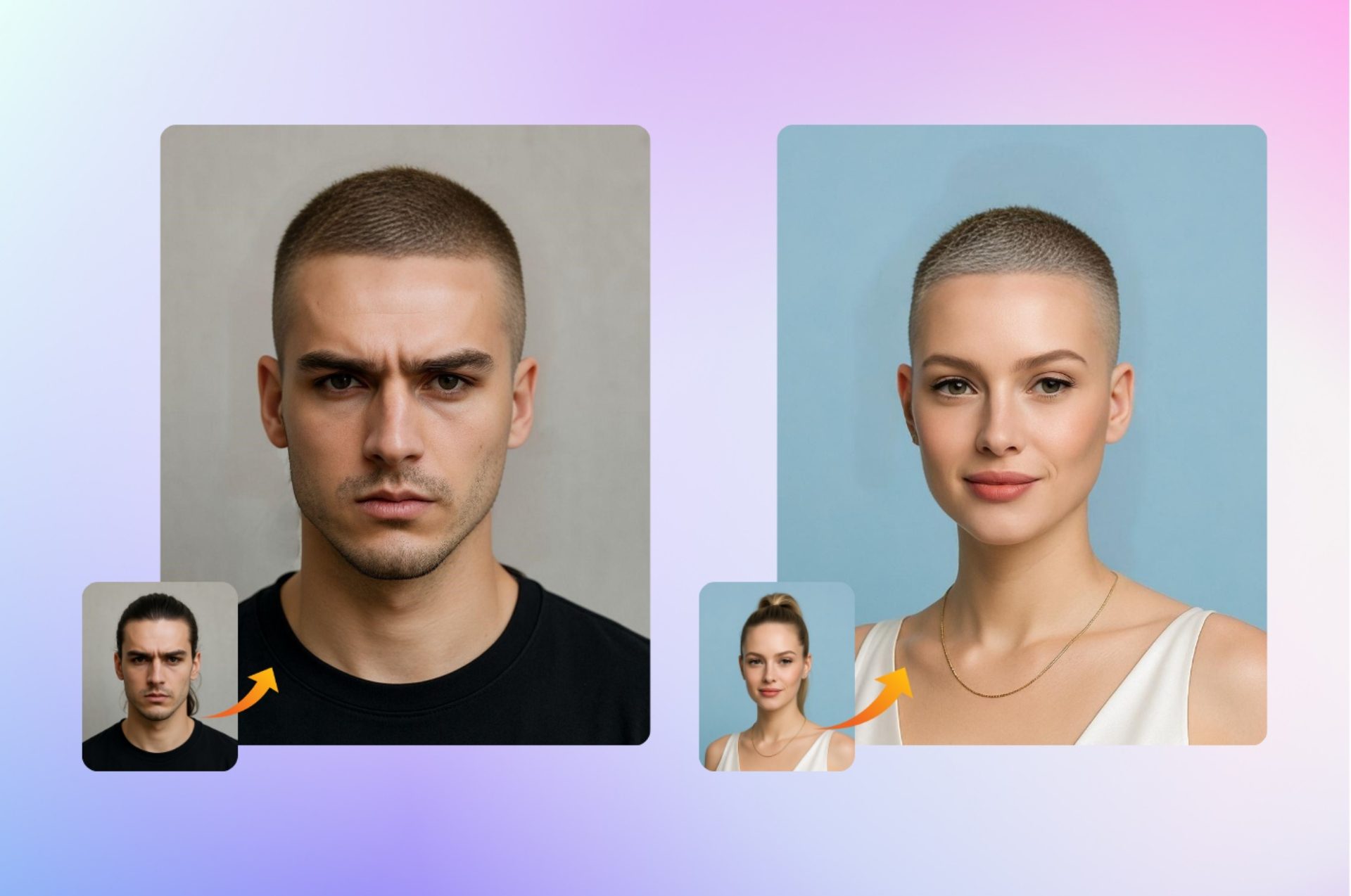
If you’ve ever wondered “what would I look like with a buzz cut?”, AILabTools’ buzz cut filter lets you find out instantly—no clippers, no risk. Open the tool in your browser, upload a clear front-facing photo, then try classic buzz, crew, military/induction, or fade styles at guard lengths #1–#4. In seconds you’ll get a realistic preview that respects your hairline, temples, and head shape—credible enough to share with friends or take straight to your barber. It’s fast, free, and requires no sign-up.
Why This Buzz Cut Filter Is Everywhere
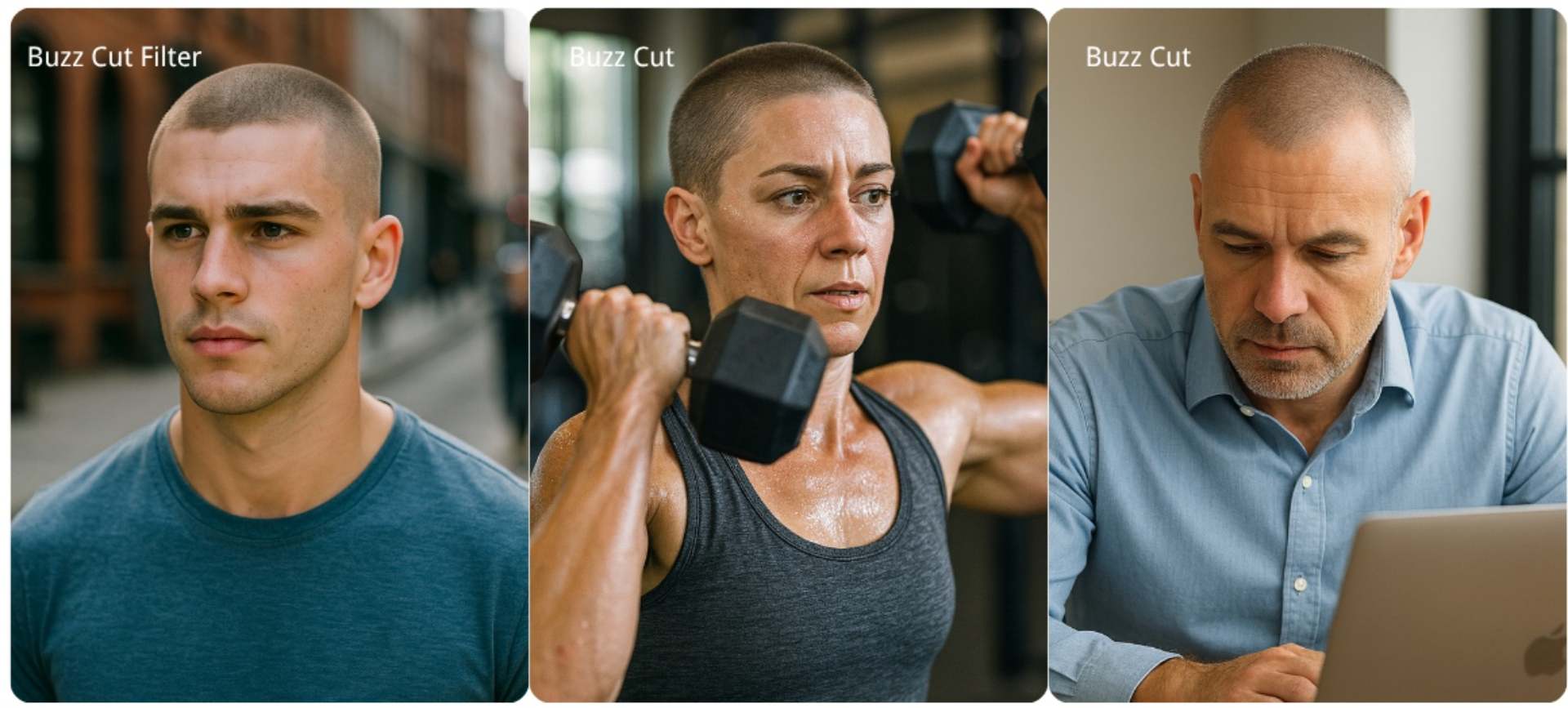
people want proof before a big chop, and AILabTools delivers friction-free, side-by-side comparisons that make decisions easy. Instead of guessing, you can see how scalp visibility, temple transitions, and outline sharpness change from #1 (≈1/8″) to #4 (≈1/2″)—and whether a low or mid fade flatters your face more than a uniform buzz. That clarity—plus a web-native flow of upload → preview → download—is why this buzz cut filter keeps popping up in shares and barbershop planning chats.
What Makes AILabTools’ Buzz Cut Filter Stand Out
Browser-first speed and simplicity. The flow is web-native—upload → preview → download—so there’s almost no learning curve.
Hyper-realistic mapping. The engine maps hairlines, temples, and head shape so the result looks like an accurate cut, not a sticker slapped on top.
Real guard comparisons. You can preview #1–#4 and actually see how scalp visibility and outline sharpness change at each step.
Clear data handling. Processed images are available for a short time (roughly 24 hours), so you can download what you want to keep. That temporary window is also reflected in AILabTools’ docs and hairstyle tools.
Who It’s For (and how it helps)
First-timers testing a buzz. How does a uniform buzz treat your hairline? Compare #1 vs #2 and check scalp reveal and silhouette.
Crew vs. buzz deciders. Prefer a little top length? Put a classic crew next to a genuine buzz to see which vibe fits your routine.
Fade fans. Try low or mid fades if a strict uniform buzz feels too stark; see if that softer transition flatters your face more.
Barber-prep planners. Bring the downloaded preview to your appointment so you and your stylist can instantly align on guard numbers and outline. Temporary links make quick saves easy—download promptly.
How to Try the Buzz Cut Filter (3 quick steps)
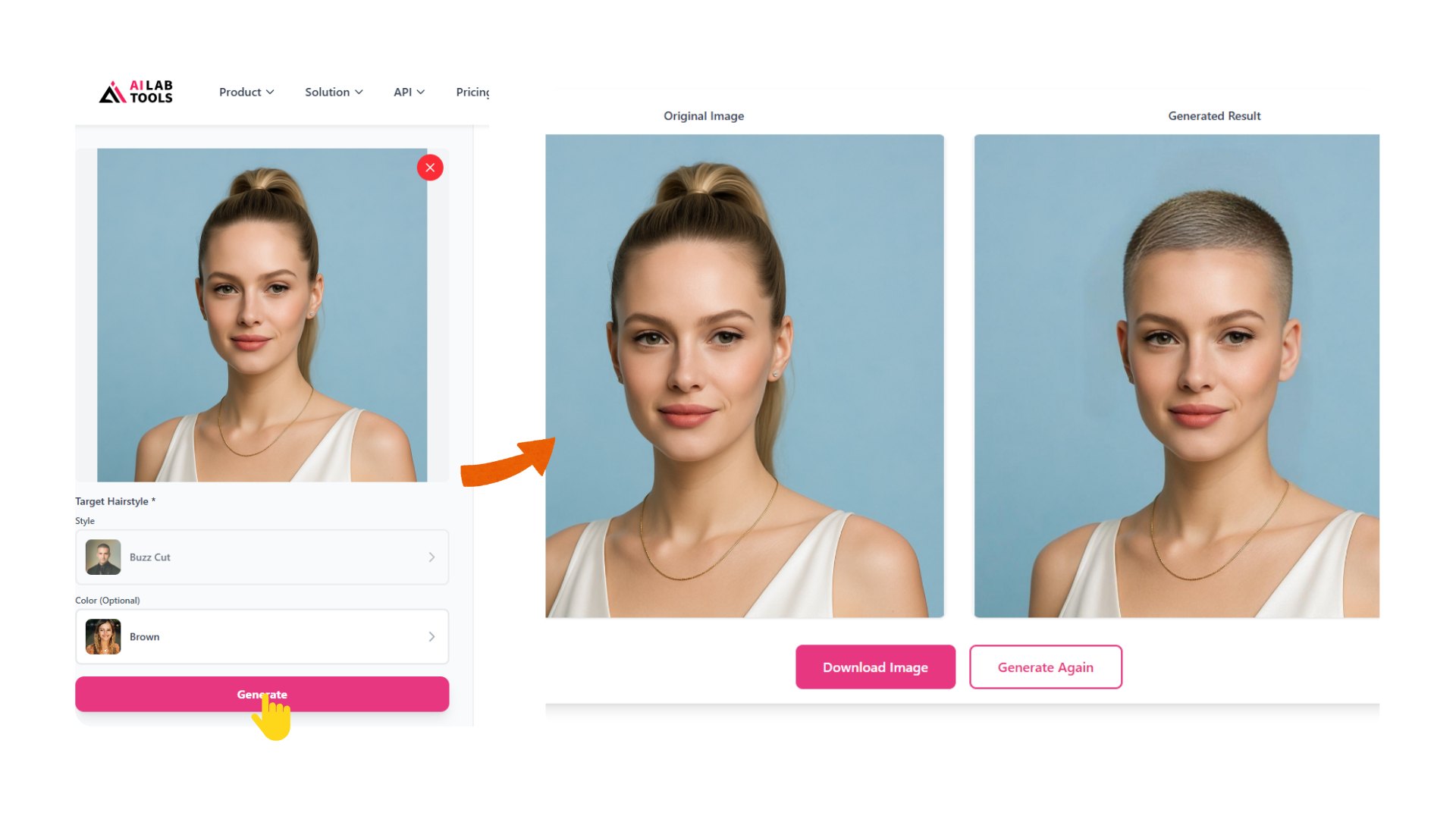
1) Upload a clear, front-facing photo. Avoid hats, heavy shadows, or anything that blocks the hairline.
2) Pick a style—classic buzz, crew, military/induction, or fade—and choose a guard length (#1–#4).
3) Generate & download your preview. Compare versions side by side and share for opinions before you commit.
Pro tip: Save a #2 and a #3 and view both on your phone at full brightness. That small length change strongly affects scalp visibility and outline definition in everyday lighting.
What “good” looks like in a preview
Look for crisp hairline mapping, believable density around the crown, and a natural temple transition. If something feels off, try a brighter photo, re-center your face, or re-shoot at eye level and regenerate. AILabTools’ hairstyle tools rely on clear frontal faces to produce the most realistic output.
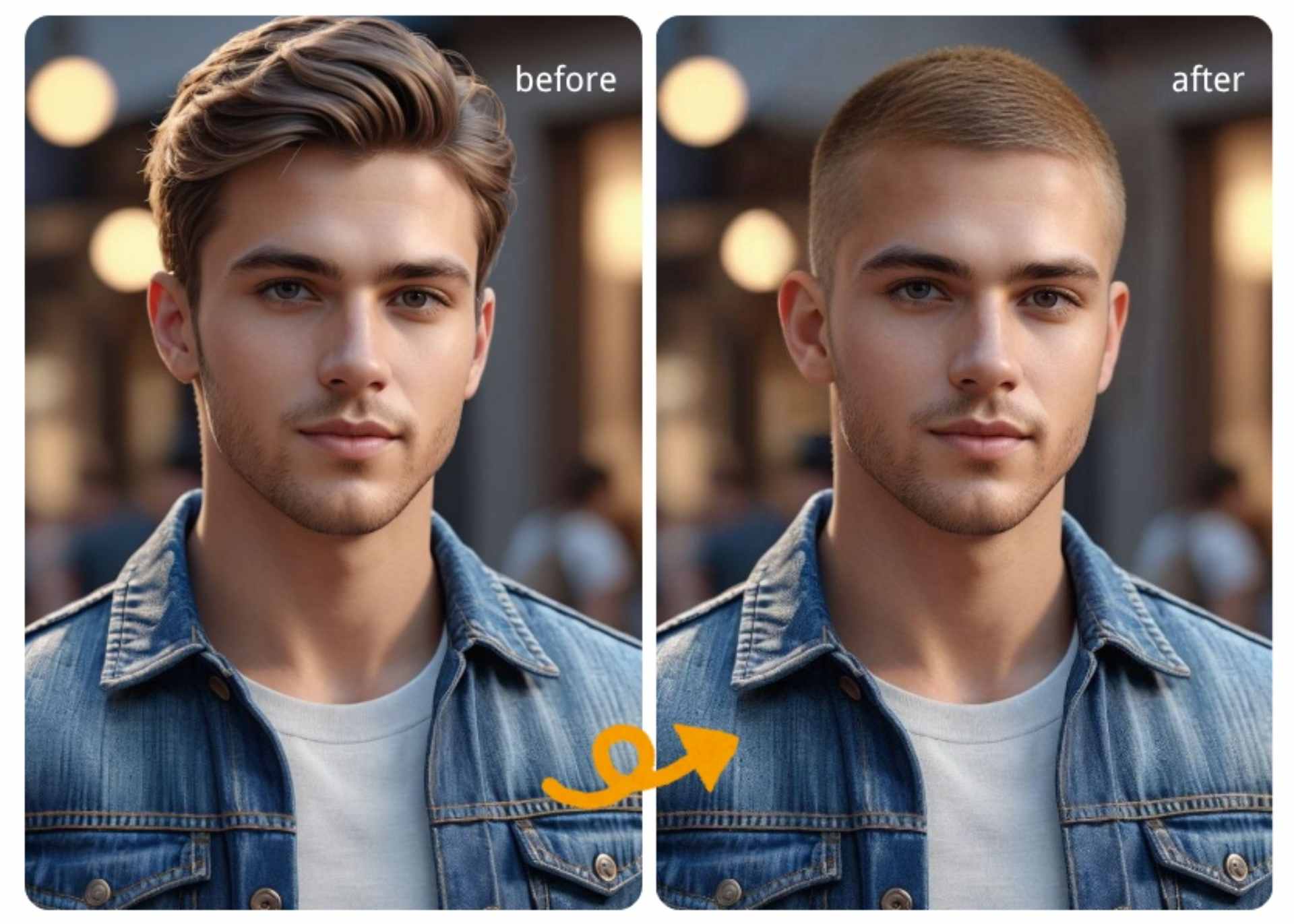
Photo guidelines for realistic results
|
Tip |
How to do it |
Why it matters |
Quick check |
|
Light it right |
Use soft, even front light (e.g., window); avoid backlight and harsh top light |
Even lighting reduces shadows, glare, and “pasted-on” look |
Skin tone looks natural; no silhouette around head |
|
Frame the face |
Keep full face & hairline in frame; camera eye-level; look straight ahead |
Proper framing helps the AI map hairline, temples, and head shape |
No cropped forehead; eyes centered horizontally |
|
Keep it clean |
Remove hats/hoods; avoid heavy filters; tidy stray strands blocking hairline |
Fewer occlusions = cleaner edges and more realistic transitions |
Hairline edges look crisp at 100% zoom |
|
Glasses / no-glasses |
Shoot one with glasses and one without |
Frames can obscure temples; a no-glasses shot may render fades more naturally |
Compare both—choose the one with smoother temple blend |
|
Compare close guards |
Test #2 vs #3 side by side; view at full brightness |
Small length steps change scalp visibility & outline sharpness |
Zoom into temples & crown; pick the one that still looks like “you” from a distance |
Quick Guard Guide (real-world vibes)
- #1 – Almost bald, ultra-clean. Suitable for hot climates and athletic minimalism. Check scalp reveal and head-shape symmetry.
- #2 – Iconic “military tidy.” Low maintenance with crisp edges. Watch how temples and crowns read in daylight.
- #3 – Balanced short. Works on most face shapes; adds texture without losing the buzz identity.
- #4 – Longest “buzz.” Easiest first step: softer outline with less scalp emphasis.
Tip: Nervous about scalp visibility? Start with #3, then preview #2 for a sharper look. Save both and compare the forehead-to-crown line at 100% zoom.
Buzz vs. Crew vs. Fade—when each wins
- Uniform buzz: Fast, consistent, hard to mess up; perfect if you value a clean routine.
- Crew: Keeps some top length to balance proportions; a gentler entry into short hair.
- Fade: Adds polish and contrast. If uniform feels too severe, a low or mid fade can move the look into “tailored” territory.
Evaluate your preview like a pro.
- Check the temples: do the corners feel too sharp or just right?
- Scan the crown: any patchiness? A #3 often photographs more evenly.
- Profile test: glance at the side silhouette—does it flatter your jawline and neck?
- Reality check: step back from the screen; if it still reads “you,” it’s probably the right length.
Before-the-barber checklist
- Save your top two previews (e.g., #2 uniform and #3 crew).
- Note the exact guard number in your photo captions.
- Decide on sideburn finish (natural vs. squared).
- If you’re trying a fade, specify low/mid/high and bring the matching preview.
Small details like these create a shared language with your barber and turn a risky chop into a confident refresh.
Responsible use & data handling
AILabTools’ tools are designed for quick, on-device decisions. Generated file links are temporary (about 24 hours)—download immediately to keep a copy. This “preview first, save what matters” model keeps the experience lightweight and user-controlled while protecting your privacy. AILabTools notes that uploaded/processed images are deleted after roughly a day, and result URLs also expire on that timeline.
Frequently Asked Questions
1) Is the buzz cut filter really free to use?
Yes—AILabTools’ feature page promotes a free, browser-based try-on. No app installation or account is required to preview and download.
2) What do the guard numbers (#1–#4) translate to?
They map to typical clipper lengths from #1 (1/8 inch) up to #4 (1/2 inch). The page also describes how each looks—from nearly bald to a softer, longer buzz—so you can pick by vibe, not guesswork.
3) How long are my results available?
Result links are temporary and generally expire after ~24 hours. Be sure to download and save what you like. AILabTools’ docs and tools describe this expiration behavior.
4) What photo quality do I need for a realistic render?
Use a clear, front-facing portrait with good lighting and an unobstructed hairline. AILabTools’ hairstyle tools rely on clean frontal faces for the best results.
5) Can I try more than just a uniform buzz?
Yes. Compare crew and fade styles (low/mid), and preview different guards to observe changes in scalp visibility and edge sharpness.
6) Is there an API for developers or pro workflows?
AILabTools offers a Hairstyle Changer Pro API for programmatic try-ons and hairstyle edits. It returns temporary result URLs that must be downloaded within 24 hours.
Ready to see yourself with a buzz?
Head to AILabTools’ Buzz Cut Filter page, upload a photo, and test #1–#4 with uniform, crew, and fade variations. A few side-by-side previews now can save you from haircut regret later—and help you and your barber lock in the perfect plan.