
AI image tools have made visual content creation much faster. Whether you are making blog graphics, social media posts, product mockups, concept art, or design drafts, tools like Gemini can help you turn ideas into images in just a few seconds.
But there is one small problem many creators run into: the final image may include a visible watermark, label, or mark that does not fit the layout you want to use.
Sometimes the mark sits in the corner. Sometimes it covers part of the background. Other times, it distracts from the overall design even if the image itself looks great. If you are working on your own image, draft, or visual concept and you have permission to edit it, cleaning up that area can make the final result look much more polished.
This guide walks through a simple, practical way to clean visible Gemini watermark areas while keeping the image natural.

Why Visible Watermarks Can Be Hard to Remove Manually
At first, removing a watermark sounds easy. You might think you can crop the image, blur the area, or paint over it with a brush tool.
But in real use, it is rarely that simple.
If the watermark is placed over a plain white background, manual editing may work. But if it appears over hair, fabric, skin, clouds, furniture, water, grass, or a detailed texture, basic editing can leave obvious marks. You may see blurry patches, strange repeated patterns, broken edges, or an area that looks softer than the rest of the picture.
That is why many creators now use AI cleanup tools instead of trying to fix everything by hand.
A tool built to remove gemini watermark can analyze the surrounding pixels and rebuild the marked area in a way that looks closer to the original image style. Instead of simply covering the mark, it tries to repair the space around it.
When It Makes Sense to Clean a Gemini Watermark
There are many reasonable cases where image cleanup is useful.
For example, you may have generated a draft image for a blog cover and want to test how it looks inside your article layout. You may be preparing a mood board for a design project. You may want a clean preview for personal reference, a presentation, or a content planning document.
It can also help when you are comparing different image versions and need a clean visual to judge composition, color, or style without distractions.
That said, it is important to use this kind of tool responsibly. You should only edit images you own, created yourself, or have permission to modify. You should also follow the rules of the platform or AI tool that generated the image. If disclosure is required, removing a visible mark should not be used to mislead people about where the image came from.
In simple words: use cleanup tools for responsible editing, not for hiding important attribution or ownership information.
A Simple Workflow for Better Results
If you want the cleaned image to look natural, the upload quality matters. A low-resolution image, heavy compression, or a messy background can make the result less predictable.
Here is a simple workflow that usually works well.
Start with the best version of your image. Avoid screenshots if you can, because screenshots often reduce detail and add compression. Use the original downloaded image whenever possible.
Next, check where the watermark appears. If it sits over a simple background, the cleanup will usually be easier. If it covers a face, hands, detailed text, or important product features, you may need to try more than once or use a slightly different crop.
Then upload the image to an AI cleanup tool such as a gemini watermark remover. The tool will process the marked area and generate a cleaner version.
After that, look closely at the final image. Zoom in around the edited area. Check edges, shadows, skin texture, background lines, and repeated patterns. If the result looks too smooth or slightly off, try using a cleaner source image or adjust the composition before generating again.
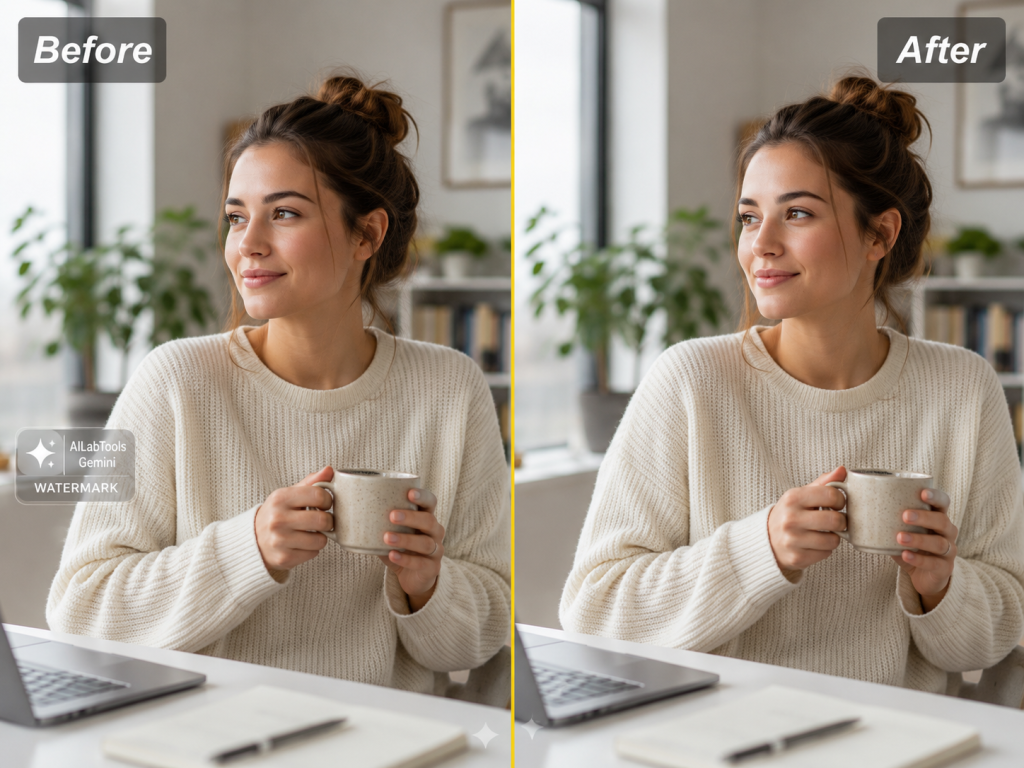
What Makes a Cleaned Image Look Natural?
A good cleanup result should not draw attention to itself.
The edited area should blend with the rest of the image. The background should not look smeared. Straight lines should stay straight. Shadows should remain soft and consistent. If the watermark was near a person’s face, hair, or clothing, the repaired area should still match the surrounding texture.
This is especially important for images used in blogs, ecommerce visuals, Pinterest posts, YouTube thumbnails, and social media covers. People may not study every pixel, but they can usually feel when an image looks “off.”
For blog images, natural results are more important than perfect results. A slightly imperfect but believable edit often works better than an over-polished image that looks plastic.
Common Mistakes to Avoid
One common mistake is cropping too much. Cropping can remove the watermark, but it may also ruin the composition. If the original image has a good balance, cropping the corner or bottom area can make the subject feel awkwardly placed.
Another mistake is using blur. Blur may hide the mark, but it also makes the edited area stand out, especially if the rest of the image is sharp.
A third mistake is stacking too many edits. If you generate an image, compress it, screenshot it, upload it to another editor, and then export it again, the quality can drop quickly. Try to keep your editing process simple.
Finally, avoid using cleanup tools on images you do not have the right to edit. This is not just a legal issue. It can also damage trust with your audience, especially if the image is being used in a commercial context.
Can You Remove Google Gemini Watermarks for Commercial Images?
This depends on the image, the license, and the platform rules.
Cleaning a visible mark from your own design draft is different from taking someone else’s image and removing attribution. Before using any cleaned image commercially, check whether you have the right to use and edit that image.
If your goal is to remove google gemini watermark from an image you created yourself, make sure the final use still follows the terms of the tool you used to generate it. If the image is for a client, brand, ad, or product page, it is worth being extra careful.
A good rule is this: if you would feel uncomfortable explaining where the image came from, you should not use it in that way.
Best Use Cases for Gemini Watermark Cleanup
A Gemini watermark cleanup tool is most useful for practical content work, especially when the image is yours and the watermark is only a visible distraction.
It can help with blog headers, concept previews, mood boards, social media drafts, educational materials, internal presentations, and design mockups.
For creators who publish often, this saves time. Instead of opening a complex editing program for every small image issue, you can clean the visible mark online and move on with the rest of your work.
For beginners, it is also less intimidating. You do not need layers, masks, clone stamps, or advanced retouching skills. You just upload the image, process it, and review the result.

FAQ
Is it okay to remove a Gemini watermark?
It depends on the image and how you plan to use it. You should only edit images you own, created yourself, or have permission to modify. You should also follow the rules of the AI platform and avoid misleading people about the image source.
Does this remove invisible AI watermarks?
This kind of tool is designed for visible watermark cleanup. It should not be described as removing invisible provenance systems or hidden AI identification signals.
Will the cleaned image lose quality?
A good source image usually gives better results. If the original image is clear, high-resolution, and not heavily compressed, the cleanup is more likely to look natural.
What types of images work best?
Images with simple backgrounds, smooth textures, or clear surrounding details usually work best. Very complex areas, tiny text, faces, or hands may need more careful review.
Can I use the result on my blog?
Yes, if you own the image or have permission to edit and publish it. For commercial or client work, always check the original image rights and platform terms.
A More Practical Way to Polish AI Images
AI image generation is already useful, but the first result is not always ready to publish. Small marks, awkward edges, or distracting labels can make an otherwise strong image feel unfinished.
That is where careful image cleanup helps.
Instead of trying to crop, blur, or manually paint over a watermark, an AI cleanup tool can repair the visible marked area and keep the overall image looking more natural.
Used responsibly, it is a simple way to make your own AI images cleaner, more flexible, and easier to use in real content projects.