AI art tools used to feel like something made for designers, digital artists, or people who already knew their way around creative software. That has changed a lot. Now, you can type a short idea into a box, wait a few seconds, and end up with an image that is good enough for a blog post, a social media graphic, a wallpaper, or just a quick creative test.
That sounds simple, but choosing the right tool is not always simple.
There are so many AI image generators online now. Some are packed with features, but they can feel overwhelming if you are just starting out. Some look easy at first, but the free version runs out quickly. Others are great for social posts, but not so useful when you want fantasy art, product mockups, logo ideas, or a clean blog cover.
I put this guide together for people who are new to AI image generation and want a tool that does not feel like learning another piece of design software. The tools below are not all the same, and that is the point. Some are better for quick images, some are better for polished design work, and some are better when you want to experiment.
What Beginners Should Look For in an AI Art Generator
When you are new to AI art, the best tool is usually not the one with the longest feature list. It is the one that helps you make something decent without making you feel lost.
The first thing I look for is a simple prompt box. You should be able to type what you want in plain English and get a result without touching ten settings first. Style options are useful too, but they should help you, not slow you down.
Prompt examples also make a real difference. A blank prompt box can be oddly intimidating. You may have an image in your head, but not know how to describe it. A few examples can give you a starting point, and from there you can change the subject, style, colours, or background.
Image size matters more than beginners expect. If you are making a blog cover, you may want a wide image. If you are making something for Instagram or Pinterest, a square or vertical format may work better. A good beginner tool should make those choices easy.
Free access is important as well. Most people need a little time to play around before they know what kind of images they actually want. You may need to try three or four prompts before you get a result you like. That is normal.
For this guide, I focused less on “which tool has the most advanced features” and more on which tools feel practical for someone who is just getting started.
1. AILabTools AI Art Generator
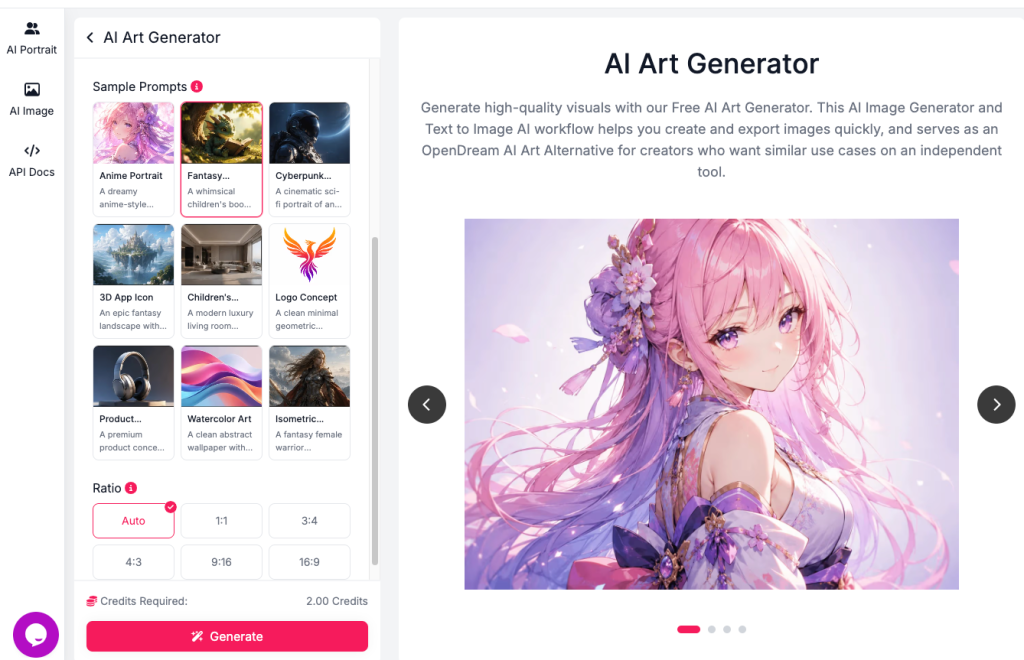
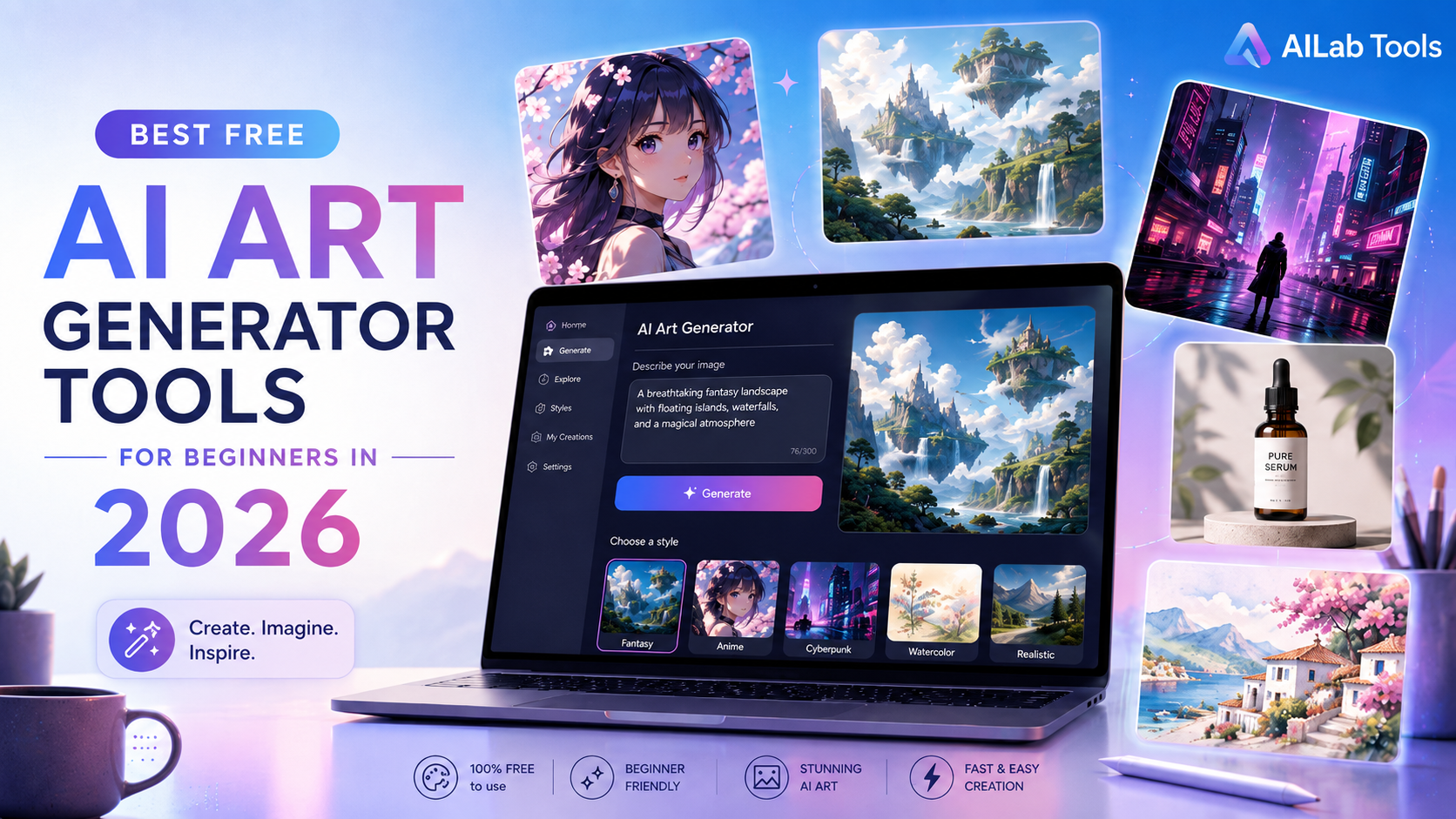
AILabTools AI Art Generator is a good place to start if you want a simple text-to-image tool without a heavy learning curve. It is built for people who want to type an idea, choose a style or image ratio, and create something they can use for a blog, social post, wallpaper, avatar, or creative draft.
One thing I like about it is that it does not leave you staring at an empty prompt box. The sample prompt ideas are useful when you are still learning how to describe an image properly. You can start with an example, swap out a few words, and slowly build your own prompt from there.
It works well for quick visual ideas such as anime-style portraits, fantasy backgrounds, cyberpunk scenes, simple logo drafts, product mockups, soft watercolor-style artwork, app icon concepts, children’s book style illustrations, and social media graphics.
It can also be a practical OpenDream AI Art alternative if you want another easy way to create AI images online without spending a long time learning a new platform.
Best for
Beginners who want a clean, browser-based AI art generator for quick creative work.
What to keep in mind
It is best for people who want fast, simple image generation. If you want deep technical control over every small setting, you may eventually want to test a more advanced tool as well.
2. Canva AI Image Generator
Canva is already familiar to a lot of people because it is used for social media posts, posters, presentations, thumbnails, invitations, and simple marketing graphics. Its AI image generator makes sense inside that kind of workflow.
The nice thing about Canva is that you can generate an image and then immediately place it into a design. You can add text, adjust the layout, resize the image, change the background, and use a template without jumping between different platforms.
For someone making Instagram posts, Pinterest pins, YouTube thumbnails, or blog graphics, that can save a lot of time.
Canva is not always the tool I would choose for pure AI art experiments, but it is very useful when the image is only one part of a finished design.
Best for
Bloggers, students, small business owners, and creators who want AI images inside ready-made design templates.
What to keep in mind
Canva feels more like a design platform than a dedicated AI art generator. That is a strength if you need layouts, but it may feel unnecessary if you only want to generate standalone artwork.
3. Microsoft Designer
Microsoft Designer is useful when you need a quick visual and do not want to overthink the process. You describe what you want, generate a few options, and use the result for posts, ads, invitations, presentations, or other simple design tasks.
It has a guided feel, which can be helpful for beginners. You do not need to understand much about prompt structure before using it. You can start with a plain description and adjust from there.
This is a good option when you need something clean and quick rather than a highly detailed piece of digital art.
Best for
People who want fast AI-generated visuals for everyday content.
What to keep in mind
It may not give you the same level of creative control as more advanced AI art platforms. For quick work, that is not always a problem.
4. Adobe Firefly
Adobe Firefly makes the most sense for people who already use Adobe tools. If you work with Photoshop, Adobe Express, Illustrator, or other Adobe apps, Firefly fits naturally into that creative world.
It is not hard to try, but it does feel more professional than casual. For someone who only wants to make a fun image in a few seconds, it may feel like more than they need. For designers, marketers, and content teams, though, it can be a strong way to test image ideas before turning them into finished creative assets.
Firefly is also useful when you care about a more polished design process, not just a one-off image.
Best for
People who already use Adobe tools and want AI image generation to fit into their normal creative workflow.
What to keep in mind
If you are a complete beginner and only want a fast free AI art generator, Adobe’s ecosystem may feel a little formal at first.
5. Leonardo AI
Leonardo AI is popular with creators who want more control over the final image. It is often used for concept art, game-style visuals, character ideas, product concepts, and detailed digital artwork.
Compared with simpler tools, Leonardo may take more time to learn. That does not mean beginners should avoid it. It just means you should expect a little more experimenting. Once you start to understand how prompts, styles, and settings affect the final result, it can be a lot of fun.
If your goal is to make more detailed visual concepts instead of quick blog images, Leonardo is worth exploring.
Best for
Concept artists, game creators, marketers, and users who want more control over image style.
What to keep in mind
There are more options to learn, so it may not be the fastest starting point for someone who wants a very simple tool.
6. Ideogram
One of the most annoying things about AI image tools is text. Many tools can generate a beautiful image, but the words inside the image come out misspelled or strange.
Ideogram is known for being useful when you want images with readable text. That makes it interesting for poster ideas, logo concepts, stickers, quote graphics, signs, and other designs where words are part of the image.
For beginners, Ideogram is a good tool to test when your design needs both visuals and typography.
Best for
People who want AI-generated posters, logo ideas, stickers, or images that include readable text.
What to keep in mind
Free limits and privacy options can change, so it is worth checking the current plan before using it for an important project.
7. NightCafe
NightCafe has been around for a while, and it still has a place for people who enjoy experimenting with styles. It is not always the most direct tool for work-related graphics, but it can be fun for trying fantasy, surreal, painting-style, or avatar-like images.
The community side can also be useful. Sometimes looking at what other people create gives you better prompt ideas than reading a long tutorial.
If you are new to AI art and want to explore different styles without a strict goal, NightCafe can be a relaxed place to start.
Best for
Hobbyists, casual creators, and people who like browsing different AI art styles.
What to keep in mind
It may not be the most practical choice if you need a clean blog cover or a commercial graphic quickly.
8. ChatGPT Image Generation
ChatGPT image generation is useful because you can work through an idea in conversation. You do not have to write the perfect prompt on the first try. You can describe what you want, ask for changes, adjust the mood, change the background, or refine the image direction step by step.
That is helpful for beginners because prompt writing can feel strange at first. Sometimes you know what you want, but not how to say it clearly. A conversational tool can help turn a rough idea into a better image prompt.
It works well for blog cover ideas, product concepts, fantasy scenes, character portraits, poster-style designs, social media visuals, and thumbnail concepts.
Best for
People who want to brainstorm and refine image ideas through conversation.
What to keep in mind
Access and generation limits can vary, so it may not be ideal if you need to create a large number of images in one sitting.
Quick Comparison
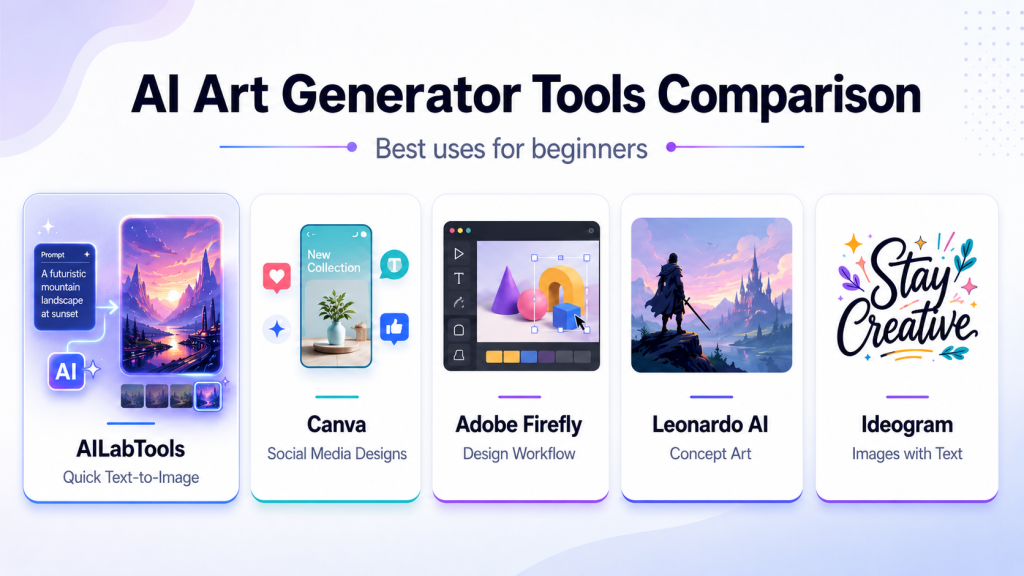
| Tool | Best For | Beginner Friendly? | Main Strength |
|---|---|---|---|
| AILabTools AI Art Generator | Quick text-to-image creation | Yes | Simple workflow and prompt ideas |
| Canva AI Image Generator | Social media designs | Yes | Templates and editing tools |
| Microsoft Designer | Everyday visual graphics | Yes | Fast guided image creation |
| Adobe Firefly | Adobe creative workflow | Medium | Professional design environment |
| Leonardo AI | Concept art and detailed visuals | Medium | More creative control |
| Ideogram | Images with text | Yes | Better text inside images |
| NightCafe | Casual AI art experiments | Yes | Style exploration and community |
| ChatGPT Image Generation | Prompt-based creative direction | Yes | Easy idea refinement |
How to Pick the Right Tool
The right tool depends on what you want to make.
If you want quick images for blog posts, wallpapers, simple concept art, or creative experiments, start with a simple free AI art generator like AILabTools.
If you want social media posts with text and layouts, Canva or Microsoft Designer may be a better fit.
If you already use Adobe apps, Firefly is worth trying because it fits into that workflow.
If you want more detailed concept art, Leonardo gives you more room to experiment.
If your image needs readable text, Ideogram is the one I would test first.
If you are still figuring out the idea itself, ChatGPT image generation can help you shape the prompt before creating the final image.
For most beginners, the best approach is simple: start with an easy tool, learn how prompts work, and only move to advanced settings when you actually need them.
Prompt Tips for Beginners
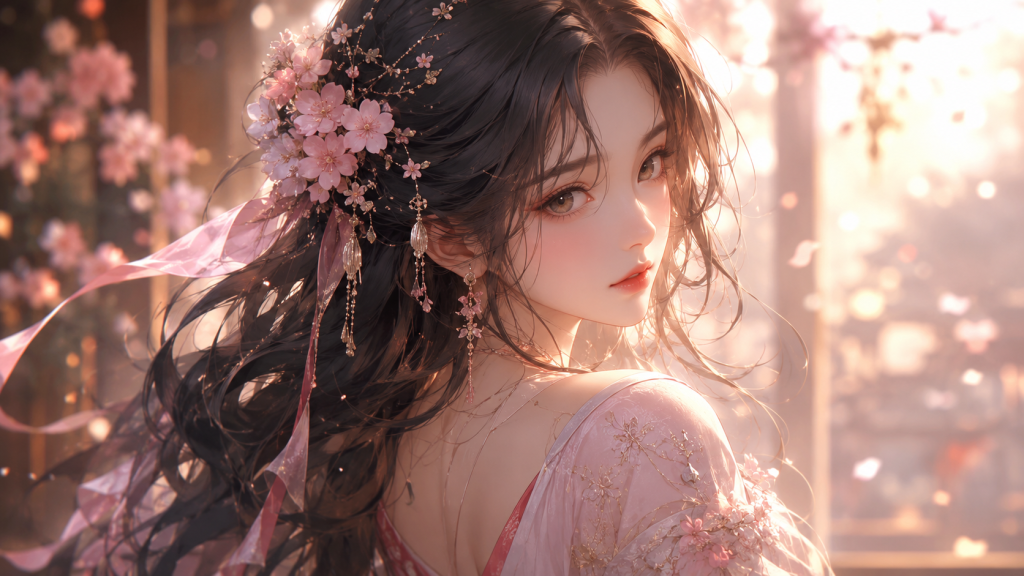
A good AI image usually starts with a clear prompt. It does not have to be long, but it should give the tool enough information to work with.
Think about the main subject first. Then add the style, background, lighting, mood, and purpose of the image.
For example, “a dragon” is too plain. You might get something interesting, but the result will be random.
A better version would be:
“a small baby dragon reading a storybook under a large tree, warm sunlight, soft colours, children’s book illustration style, cosy fantasy mood, clean background”
That prompt gives the tool more direction. It explains what the subject is, what it is doing, where it is, and what kind of feeling the image should have.
Here are a few simple prompt templates you can adjust:
Blog Cover Prompt
“A clean modern blog cover image about [topic], soft gradient background, editorial illustration style, simple composition, no text”
Social Media Prompt
“A bright social media image about [topic], bold composition, colourful background, modern digital art style, high contrast, no watermark”
Fantasy Art Prompt
“A fantasy landscape with [main subject], cinematic lighting, detailed environment, dreamy atmosphere, digital painting style”
Product Concept Prompt
“A premium product render of [product], studio lighting, clean background, realistic 3D style, modern advertising look”
Avatar Prompt
“A friendly avatar portrait of [character], clean digital illustration style, soft lighting, centred composition, simple background”
You can paste these templates into a text to image AI tool and replace the words in brackets with your own idea.
Mistakes Beginners Often Make
A lot of beginner mistakes are easy to fix once you notice them.
The first one is being too vague. If your prompt only says “a city” or “a dog,” the tool has to guess almost everything. Add a little more context. Is it realistic or cartoon-style? Daytime or night? Busy or quiet? Modern or vintage?
Another common mistake is trying to put too much into one image. If your prompt includes a robot, a castle, a forest, a spaceship, a coffee shop, and a sunset, the final image may look messy. One main subject is usually enough.
Aspect ratio is also worth paying attention to. A square image works well for avatars and many social posts. A wide image is better for blog banners and YouTube thumbnails. A vertical image makes more sense for mobile wallpapers, stories, and reels.
It is also smart to be careful with copyrighted names. Instead of asking a tool to copy a specific character, movie, brand, or living artist, describe the mood and style in your own words.
And finally, do not expect the first result to be perfect. AI image generation is often a process. Change one detail, try again, compare the results, and keep the version that feels closest to your idea.
What Can You Use AI Art Generators For?
Free AI art generators are useful for more than just “making art.” They can help with everyday creative work, especially if you do not have a designer or a big content budget.
You can use them for blog covers, Pinterest graphics, YouTube thumbnail ideas, social media posts, phone wallpapers, fantasy art, anime-style portraits, logo concept drafts, product render ideas, character designs, children’s book style illustrations, mood boards, website hero images, and advertising concepts.
For beginners, the biggest value is speed. You can test a visual idea in minutes instead of waiting until you have time to design everything from scratch.
That does not mean every generated image will be perfect. Some will look strange. Some will miss the point. But even those results can help you understand what you want more clearly.
Final Thoughts
The best free AI art generator for beginners is not always the most advanced tool. It is the one that helps you get a usable image without making the process feel complicated.
Canva and Microsoft Designer are helpful for quick design work. Adobe Firefly is a good fit for people already using Adobe tools. Leonardo AI is strong for concept art. Ideogram is useful when your image needs text. NightCafe is good for casual style experiments. ChatGPT image generation is helpful when you want to think through the idea before creating the final visual.
For a simple starting point, AILabTools AI Art Generator is a practical choice. It gives beginners an easy way to turn text prompts into images for blogs, social media, wallpapers, and creative drafts.
Start with one idea. Write a clear prompt. Generate a few versions. Then adjust the wording until the image feels right.
That is usually the best way to learn AI art generation: not by memorising prompt rules, but by making images, testing ideas, and improving one prompt at a time.