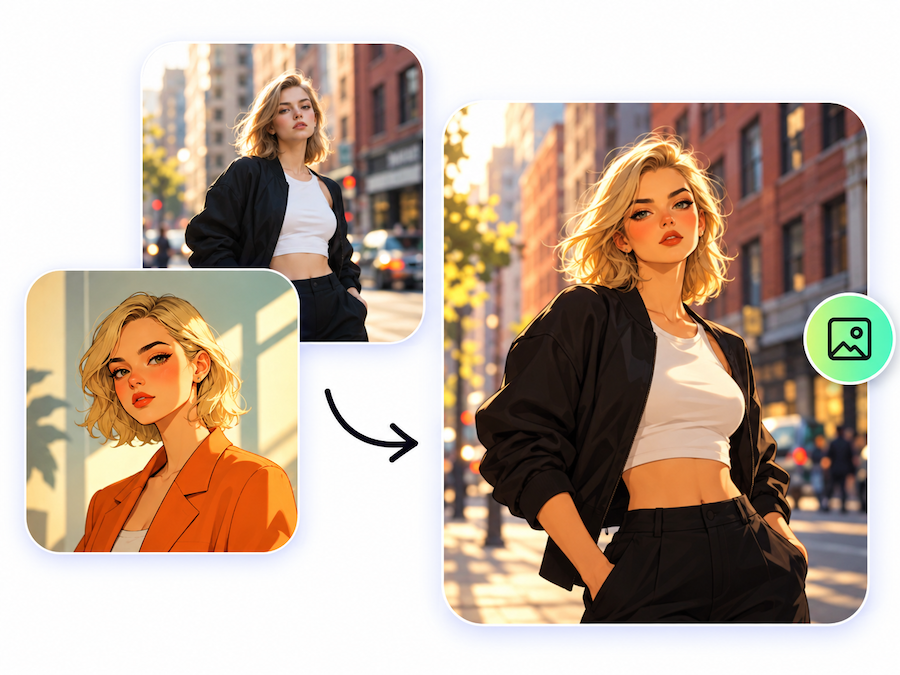
Combining photos used to mean opening Photoshop, cutting out objects, working with layers, and spending time adjusting lighting and shadows. That’s fine for professional editing, but it can feel like a lot of work when all you need is a product image or a quick social media visual.
I recently tried AILabTools Combine Images with two different sets of photos.
The first involved a man, an outfit, and a wristwatch. The second combined a cozy living room photo with a white baseball cap and a black presentation box.
Each example used three separate images. I wanted to see whether AI could bring those elements together in a way that felt natural rather than simply placing them side by side.
The results were more interesting than I expected.
First Example: Combining a Man, an Outfit, and a Watch
Insert screenshot of the three uploaded images here.
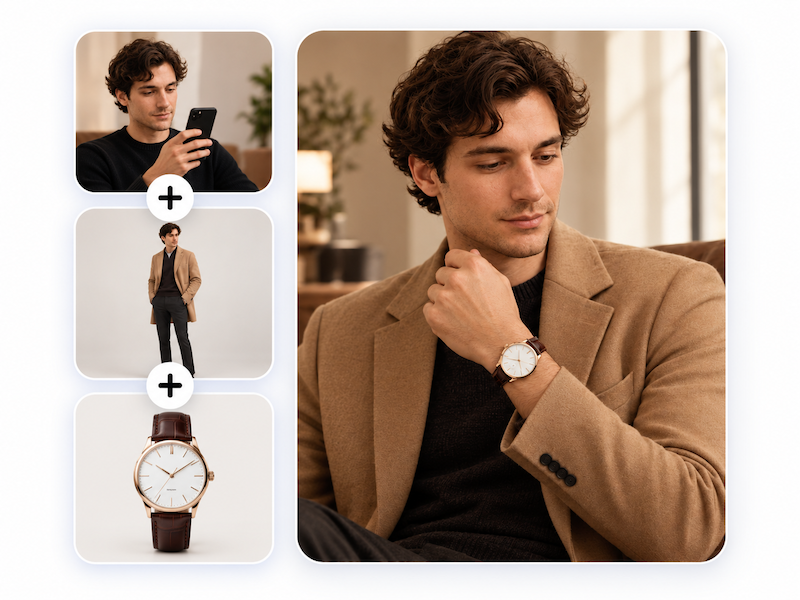
For the first example, I uploaded three images:
- A man wearing a black sweater and looking at his phone.
- A fashion model wearing a camel-colored coat and dark trousers.
- A classic wristwatch with a brown leather strap.
I selected the Product and Model mode in AILabTools.
The generated image showed the man wearing the camel-colored coat, with the watch visible on his wrist. The warm indoor setting worked well with the outfit, making the result look more like a fashion lifestyle photograph.
Insert the generated fashion image here.
One detail stood out to me: the AI didn’t just add the coat and watch to the original photo. It also changed the man’s pose.
In the source image, he was looking down at his phone. In the result, his hand was raised near his neck, making the watch more noticeable.
That worked well for this particular image because it naturally drew attention to the accessory.
However, it’s worth knowing that AI may adjust the original pose to make the new elements fit. If you need everything about the person to remain exactly the same, you’ll want to check the result carefully.
For fashion lookbooks, accessory promotions, or outfit inspiration posts, this kind of image combining could be genuinely useful.
Second Example: Adding a White Baseball Cap to a Lifestyle Photo
Insert screenshot of the second set of uploaded images here.
For the second example, I chose something completely different.
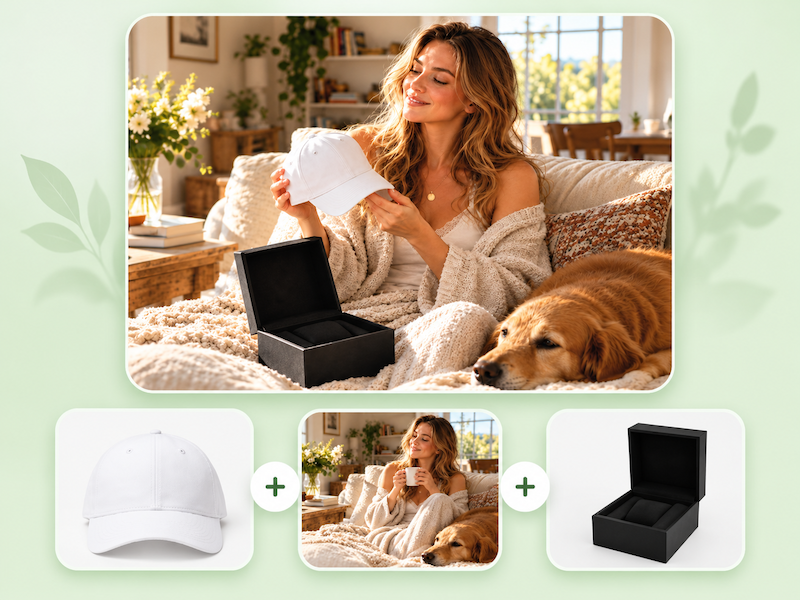
The main photo showed a woman relaxing on a sofa with a cup of coffee. Sunlight filled the room, and a golden retriever was resting beside her.
I added two more images: a plain white baseball cap and an open black presentation box.
The idea was to see whether the AI could turn three unrelated photos into a believable lifestyle product image.
Insert the generated image of the woman holding the white cap here.
In the final image, the woman was holding the white cap with both hands, looking down at it with a smile. The black presentation box appeared on the sofa in front of her.
What I liked was how naturally the objects were placed into the scene.
The cap wasn’t floating beside the model or awkwardly pasted into the frame. She was actually holding it. The presentation box also looked like part of the setting.
The original atmosphere remained recognizable, with the sunlight, furniture, flowers, and dog still in the picture.
There was one noticeable change: the coffee cup from the original photo was gone. The AI had adjusted the woman’s hands and gaze so she could interact with the cap instead.
For a creative product image, I think that change makes sense. The finished picture looks more like a lifestyle shot than a collection of separate product photos.
It’s the kind of visual a small accessories brand or online store might use when exploring ideas for a campaign.
How I Used AILabTools to Combine the Images
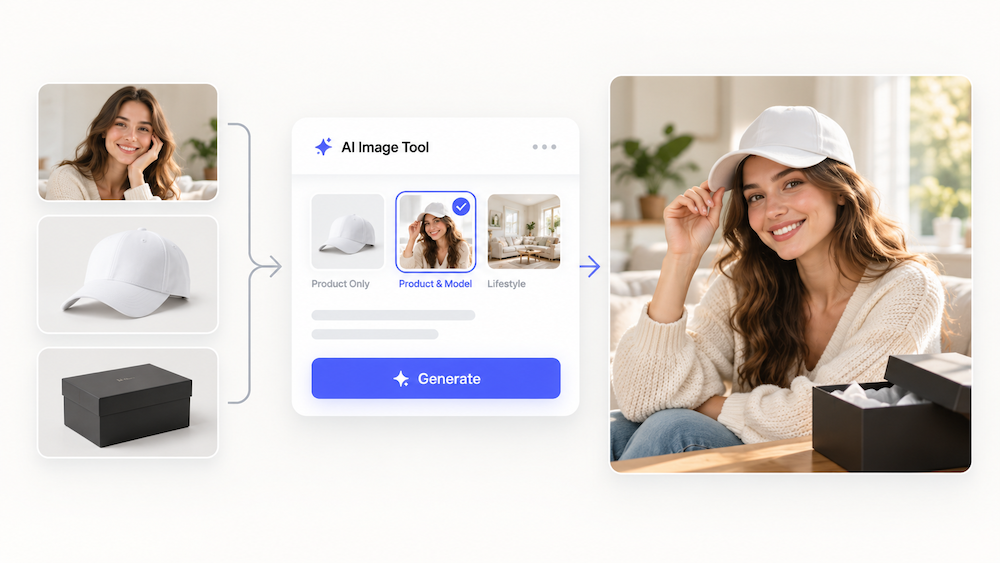
Both examples followed almost the same process.
- Upload the photos. Open Ai image generator from image and add your source images. The tool supports 2–9 images per task.
- Choose a combination mode. I used Product and Model for both examples because I wanted to combine people with clothing and accessories.
- Generate the image. Click Generate and let the tool create the composition. The interface showed a cost of 2 credits for each generation.
- Review and download. Check the result, especially the appearance of the products and people, before downloading it.
There’s no need to manually cut out the objects or build the composition with Photoshop layers.
The tool also offers other modes for different tasks, including before-and-after comparisons, scene merging, and collages.
What I Noticed from These Two Examples
The most useful part of the results wasn’t simply that three photos became one.
It was how the AI handled the relationship between the people and objects.
In the first example, the man was wearing the coat and watch. In the second, the woman was holding the cap, with the box placed naturally nearby.
These interactions made the images feel more like complete photographs.
There is a trade-off, though.
In both cases, the AI changed the original subject’s pose to accommodate the new items. That isn’t necessarily a problem for creative photography, but it matters if you need to preserve the original image precisely.
I’d also recommend checking small product details before using the result commercially. A watch might look convincing, for example, without every detail of the dial matching the original product photo.
Good source images help, too. Clear product photos and compatible camera angles give the AI a better starting point.
Where This Kind of Image Combining Makes Sense
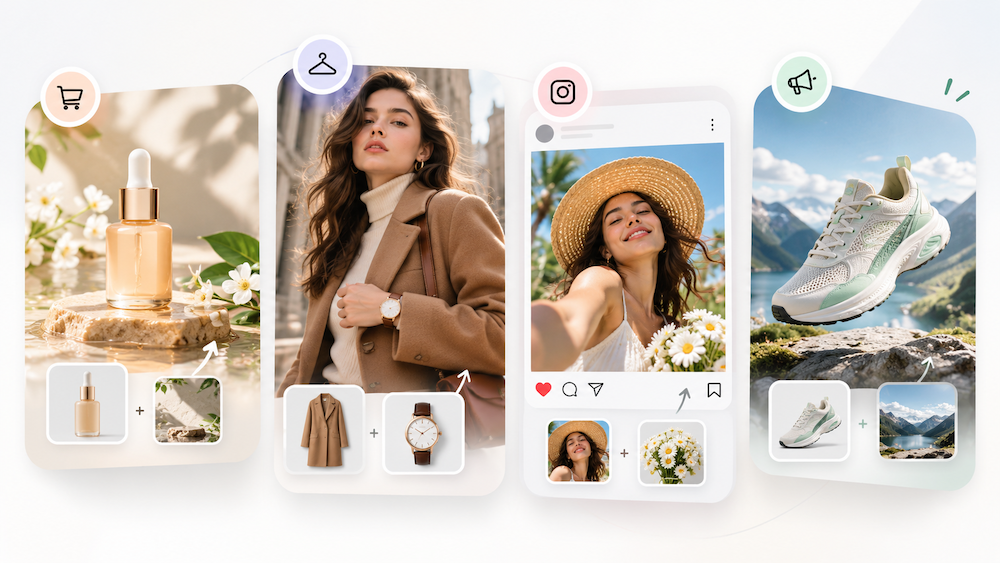
After seeing these results, I can think of several practical uses.
E-commerce product images: Combining existing product photos with models or lifestyle backgrounds to explore new promotional concepts.
Fashion and accessories: Showing how clothing, watches, hats, or other items might look together without photographing every combination.
Social media content: Turning separate photos into more engaging visual stories.
Marketing concepts: Experimenting with different product placements and compositions before investing in a professional photo shoot.
The main advantage is being able to work with images you already have rather than creating every scene from scratch.
Of course, generated images still need a final review, particularly when they represent actual products.
Final Thoughts
These two examples gave me a clearer idea of what AI image combining can do.
Three separate photos became a single image with believable interactions between people, products, and their surroundings.
The fashion example turned a simple portrait into a styled outfit photo. The second created a warm lifestyle scene around a white baseball cap.
Neither result was an exact copy of the original photos, and that’s something to keep in mind. The AI adjusted the compositions to make the new elements work together.
If you often work with product photos, portraits, or background images, AILabTools AI Image Combiner is worth trying.
Based on these two examples, I see it as a useful way to explore creative image ideas without spending too much time on manual editing.
Sometimes you don’t need a complicated Photoshop workflow. You just need a way to make a few separate images look like they belong together.